
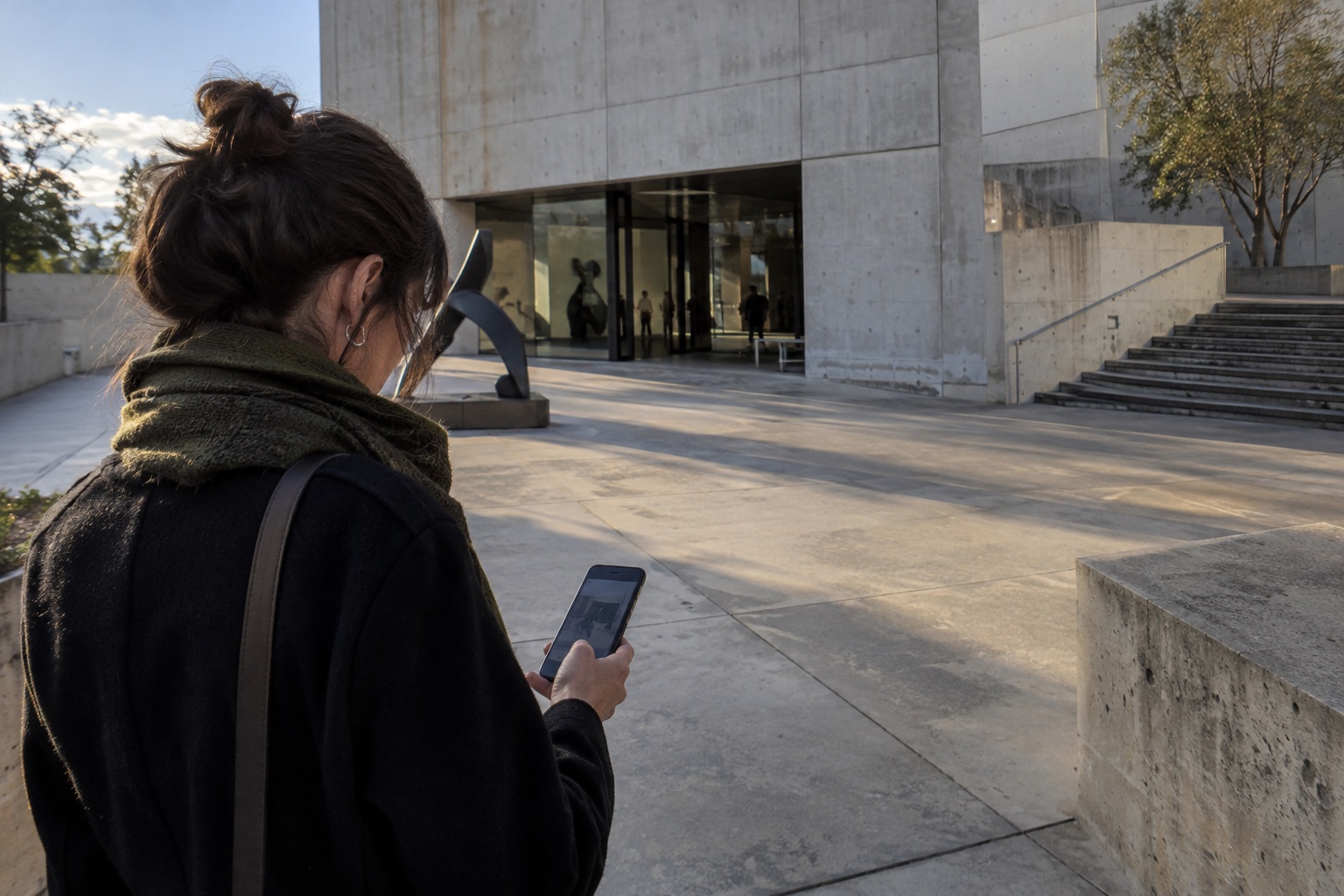
Finish photographing a building, then keep those photographs together. Wrap up a site visit with an album for the project.
While shooting, we usually know what we are recording: a project, a building or one stop on a journey. As photographs accumulate, those clear groups can disappear into the library.
Back home, we search, select and create albums—organizing something we already understood when we took the photographs.
Plumb’s Current Shoot lets you do that on site: review the photographs you just took, save the group as a new album or add it to an existing one. It is not another complicated folder system. It makes filing a natural part of finishing a shoot.
More than a review: a way to finish the shoot
Current Shoot focuses on this group, not the entire library. Open it from the camera, review photographs, enter a full-screen preview when needed, then return to shooting. Read the guide.
A natural moment is when you have nearly finished at one location, before putting your phone away or walking to the next stop.
You still remember why you took each photograph and what to call the group. Instead of leaving the filing until later, give the shoot an album now.
Tutorial: save the current shoot as an album
1. Shoot, then open Current Shoot
Take a group of photographs in Plumb. When shooting in portrait orientation, tap the thumbnail strip below the shutter to open Current Shoot. This is the entry point for this session; Library at the bottom left opens your full library.
2. Quickly check the group
Tap a thumbnail to see the photograph at a larger size. Check framing, details and any missing angles. If you need another shot, return to the camera.
This does not have to be your final selection. Simply check that you have recorded what you wanted. Open individual previews or tap Select at the top right to select several photographs.
3. Choose Save to New Album and name the shoot
To save the whole current shoot as a new album, tap Save to New Album at the bottom, enter a name and confirm.
Use a name your future self will recognize, for example:
- Coastal house · facade scouting
- Art museum · afternoon light
- Mountain trail · day two
A project or place plus the subject often recalls a group more clearly than a date alone.
Add follow-up photographs to the original album
A project does not have to be photographed in one visit. A few extra details before leaving, or a return visit in different light, do not need another album.
In Current Shoot, tap Select , choose the photographs, then use Add to Album at the bottom and choose an existing album. Creating an album for the whole group and adding selected photographs are two different ways to organize.
Current Shoot is a temporary group for a continuous session, not a permanent album. A longer pause or a change of place may start a new group. Save or add the group you want to keep while it is still current.
Professional work: make filing part of the workflow
For professional photography, place Current Shoot between shooting on site and the later selection process .
For an architectural project, first record the facade, entrance, materials and surroundings. After that round, open Current Shoot, check for missing shots and create an album with the project name.
The sequence can be simple:
Shoot → check on site → fill the gaps → file in the project album → select and process later.
The aim is not to finish all post-production on site. It is to establish which project these photographs belong to. Later, you work with a grouped set of material rather than scattered frames you have to find again.
Even if your main shoot uses a professional camera, Plumb can support phone-based location scouting, viewpoint references and on-site communication, with a separate album for those supporting photographs. It serves that part of the mobile workflow without replacing your existing post-production process.
Travel: one building, one stop, one album
Use the same approach at each stop on a trip.
Imagine visiting an art museum. From the first view at the street corner to the entrance, courtyard, stairs and facade details, you photograph several angles with Plumb. Before leaving, open Current Shoot and save an album named after the museum.
At the next park or destination, organize the next group when that stop ends.
Your trip does not have to become one ever-growing “travel photos” album. Organize around what matters to you: a building, a trail or a complete visit.
The point is not to classify every photograph as you take it. It is to build a small habit:
Before leaving a place, file the photographs from that stop.
Fit it into the way you save
Under Save Albums in Settings, choose Plumb, Photos or Both . Choose Plumb or Both to manage albums inside Plumb; choose Photos or Both to use them in Apple Photos, granting access when prompted. Read about save settings.
A photograph records a view. An album keeps the context of a shoot.
Current Shoot does not need to add another organizing task. It puts filing at the moment when it is easiest: while you are still there, still remember what you saw and know why these photographs belong together.
Observe while shooting. When you finish, give the group a name.