
Until now, filters were mainly a choice you made after taking a photo. In Plumb 1.1.1, you can make that choice earlier: switch filters in the camera, see how they affect the scene, then decide when to press the shutter.
Swipe through filters. See the effect.
Filters sit on either side of the shutter. Swipe left or right to bring a filter to the centre, and the viewfinder updates with your selection. Tap the central shutter when you are ready to shoot.
From colour to black and white, you can compare different looks without taking several photos first. Watch how colour and contrast change across the same façade and light, then continue composing.
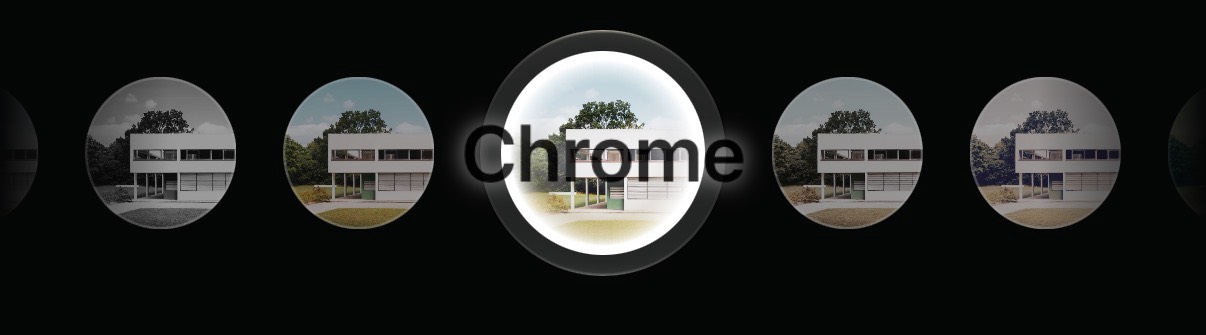
Keep colour decisions in your shooting workflow
Live correction preview helps you judge the building’s corrected composition. Live filters let you see the colour treatment while framing. They address different decisions, but both help you see your choices before taking the photo.
For a concrete building with strong shadows, try comparing colour and monochrome. For a façade in warm evening light, explore a few filters while watching the light, without leaving the camera.
Filters do not change Plumb’s approach to preserving originals. Perspective correction runs on your iPhone, and the corrected result does not overwrite the original photo.
Custom filters and random colour adjustments
Version 1.1.1 also adds custom filters. Adjust a look, save it, and use it while shooting. To explore another direction, try random colour adjustments, then refine the result with the live preview.
The focus of this update is simple: make filters part of composing a photograph, not only something you apply afterward.
The next time a building catches your eye, swipe through a few filters and see how the same light can look different.