
Choose a viewpoint, control verticals, leave room for correction, and use light, scale and detail to make stronger architecture photos on iPhone.
A building might catch your attention through the rhythm of its façade, light grazing a wall, or a space that makes you want to step inside. Before taking a photograph, decide what you want to remember. These six techniques are easy to practise with an iPhone.
01 Choose your viewpoint before your lens
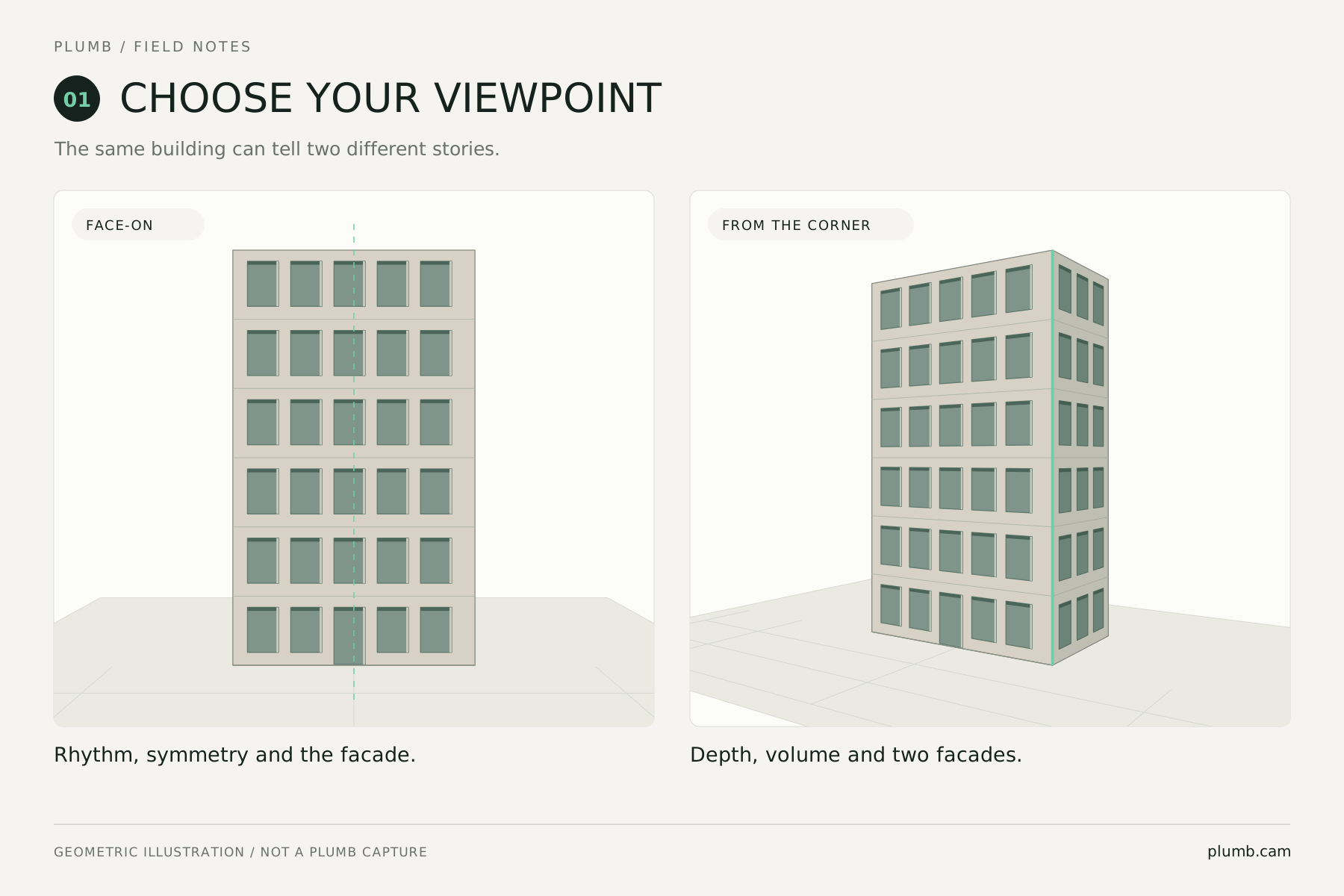
Shoot straight on for order, or from a corner for depth. For a symmetrical entrance or a regular grid of windows, line yourself up with the building’s centre and check the balance on both sides. To show its volume, move towards a corner and include two façades.1
Try starting at 1×. Move sideways or, where there is space, step back before deciding whether you need 0.5×. Your position determines the relative sizes of near and distant objects. Zooming from the same spot changes the framing, not your viewpoint.2
02 Make your verticals intentional
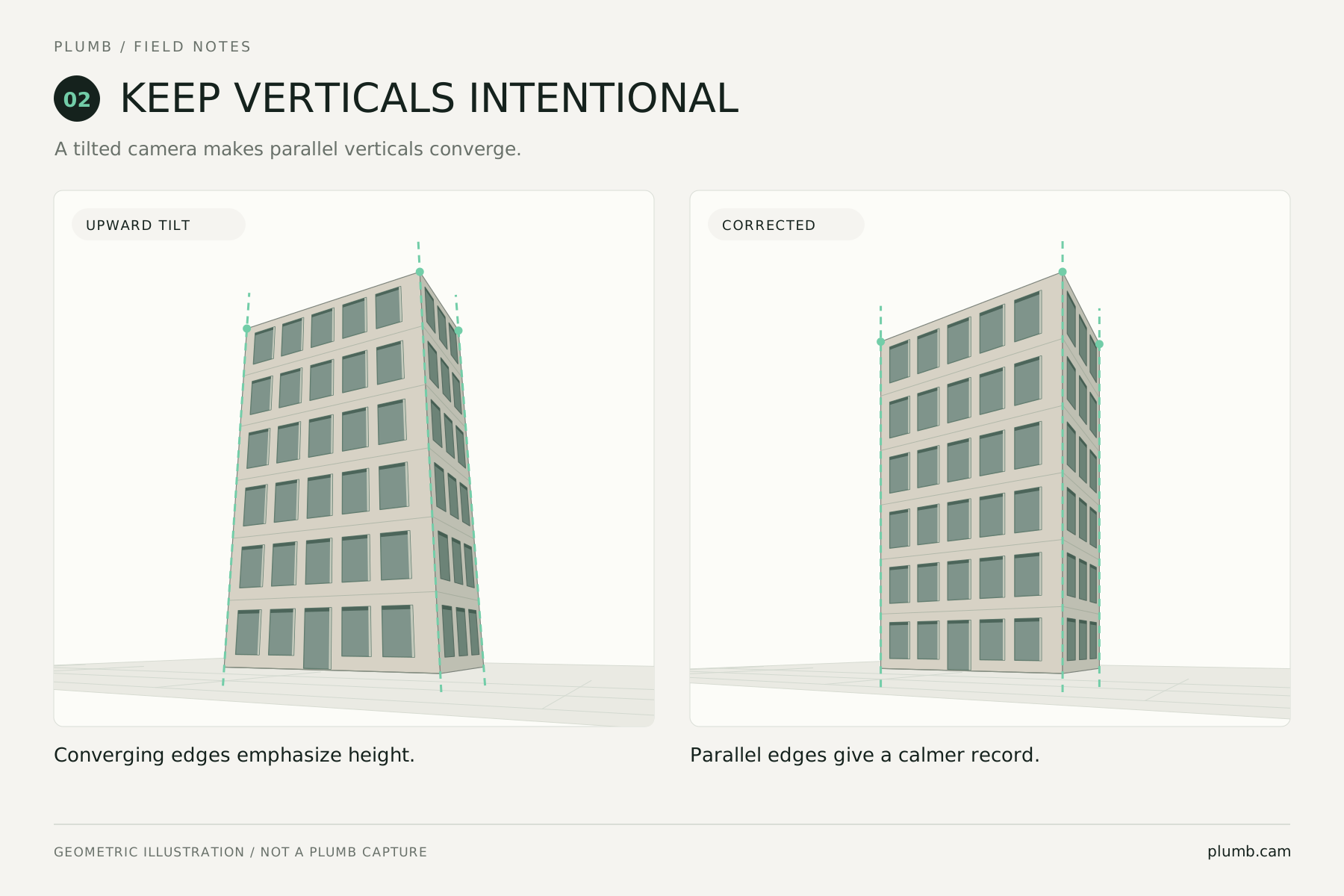
Pay attention to vertical lines when you want to describe a building clearly. Tilting the phone upwards makes parallel vertical edges converge in the photograph. Reducing the upward tilt or applying perspective correction can give the building a more upright appearance.1
You can also keep that convergence to emphasise height. With correction on in Plumb, enable Live Correction Preview and see whether the adjusted verticals suit the photograph you want to make.3
03 Leave room for the final crop
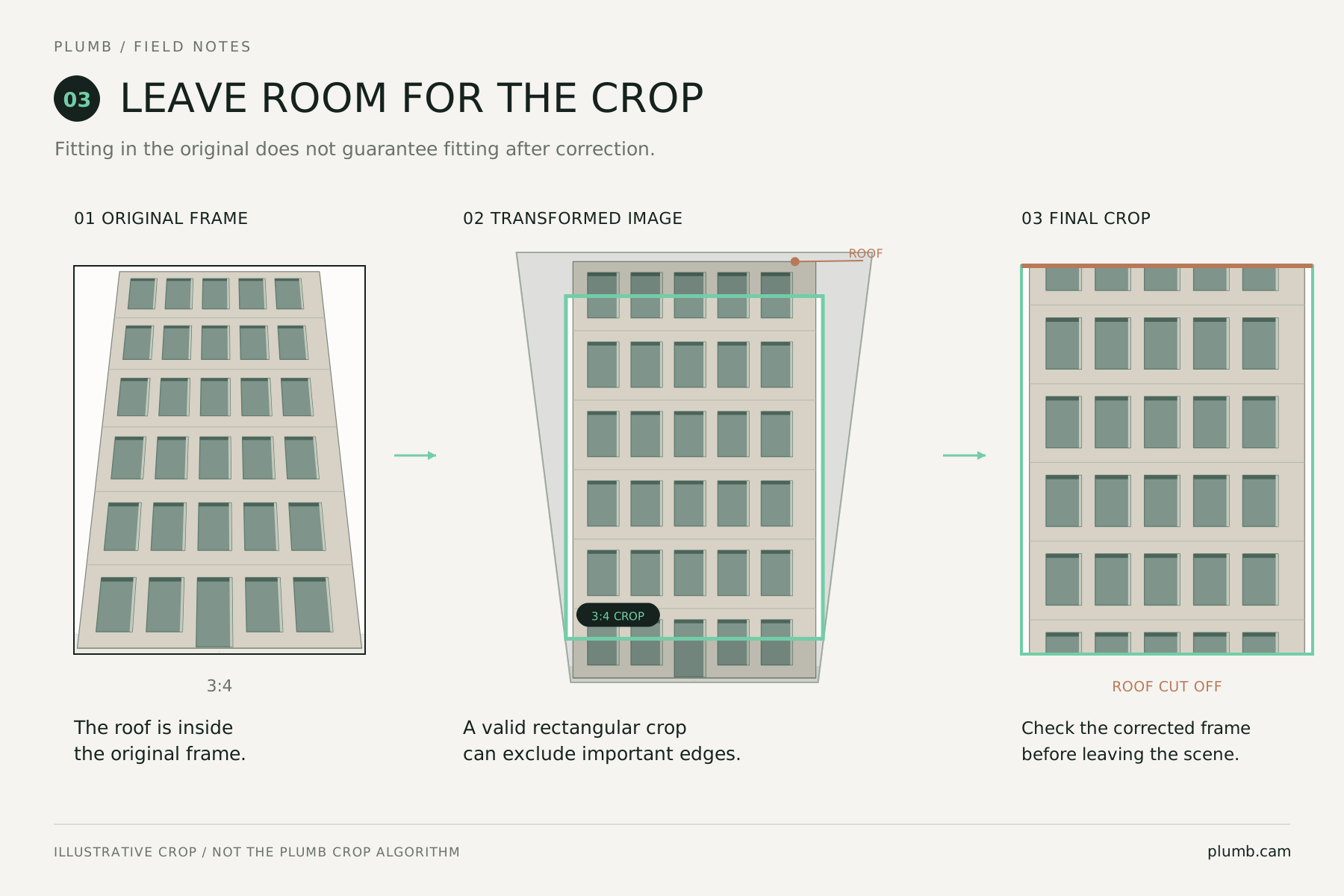
A roof that fits in the original may not fit in the final image. Perspective correction changes the image boundary. Cropping away empty areas can also remove details close to the edges.4
Check the roof, both sides and the steps at the bottom, and give them some breathing room. Use Plumb’s Live Correction Preview to help frame the shot, then check the saved photograph. The preview is a framing aid; the final result may differ.3
04 Read the light on the building
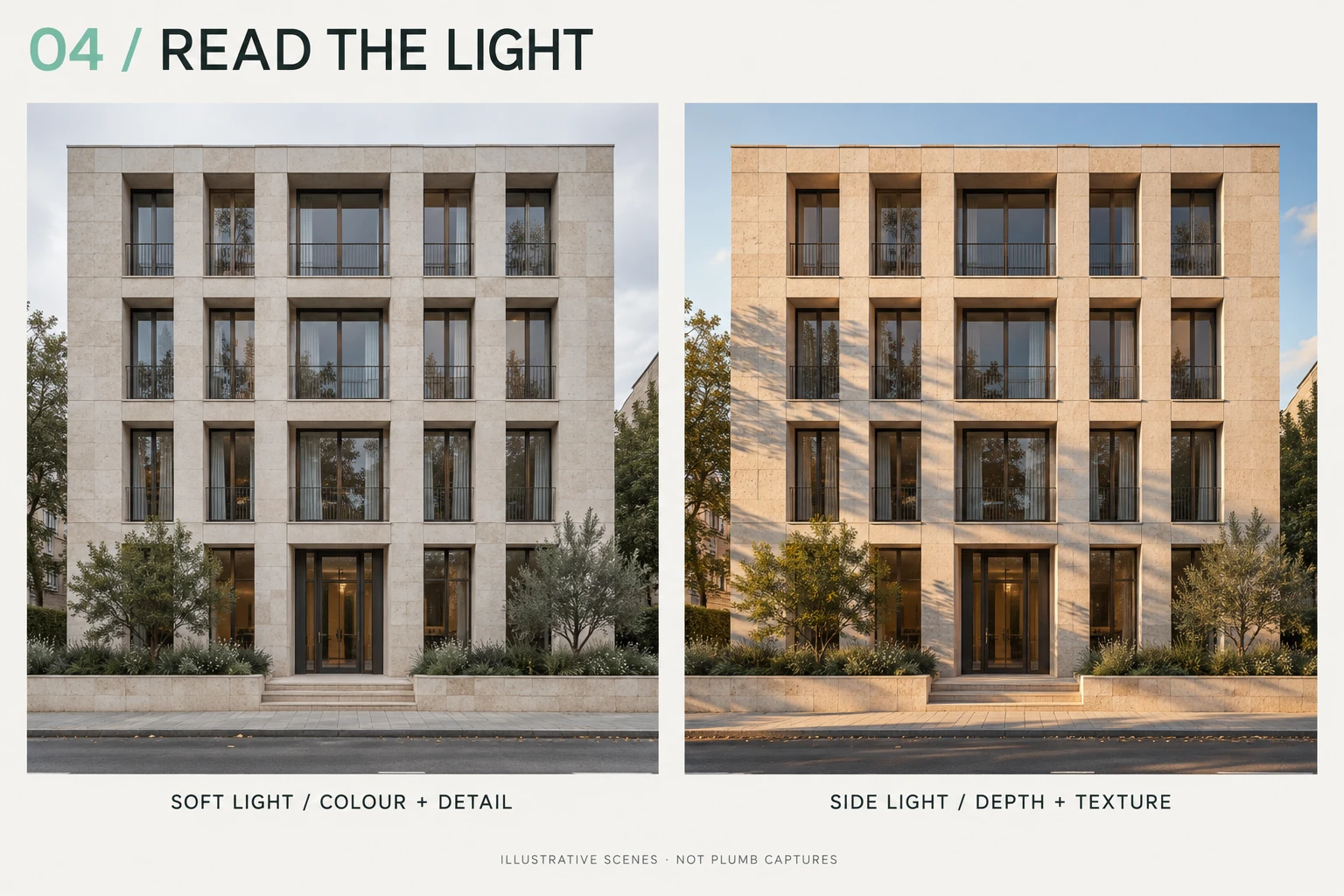
Use side light for depth and texture, and soft light for colour and detail. Light coming across a façade brings out recesses, columns and texture. An overcast sky gives more even illumination. Early and late light are worth exploring, while strong midday shadows can create graphic shapes of their own.5
Look for the wall that is catching the light, then walk a little further. Returning to the same corner at a different time may give you a very different photograph.
05 Give the building a human scale
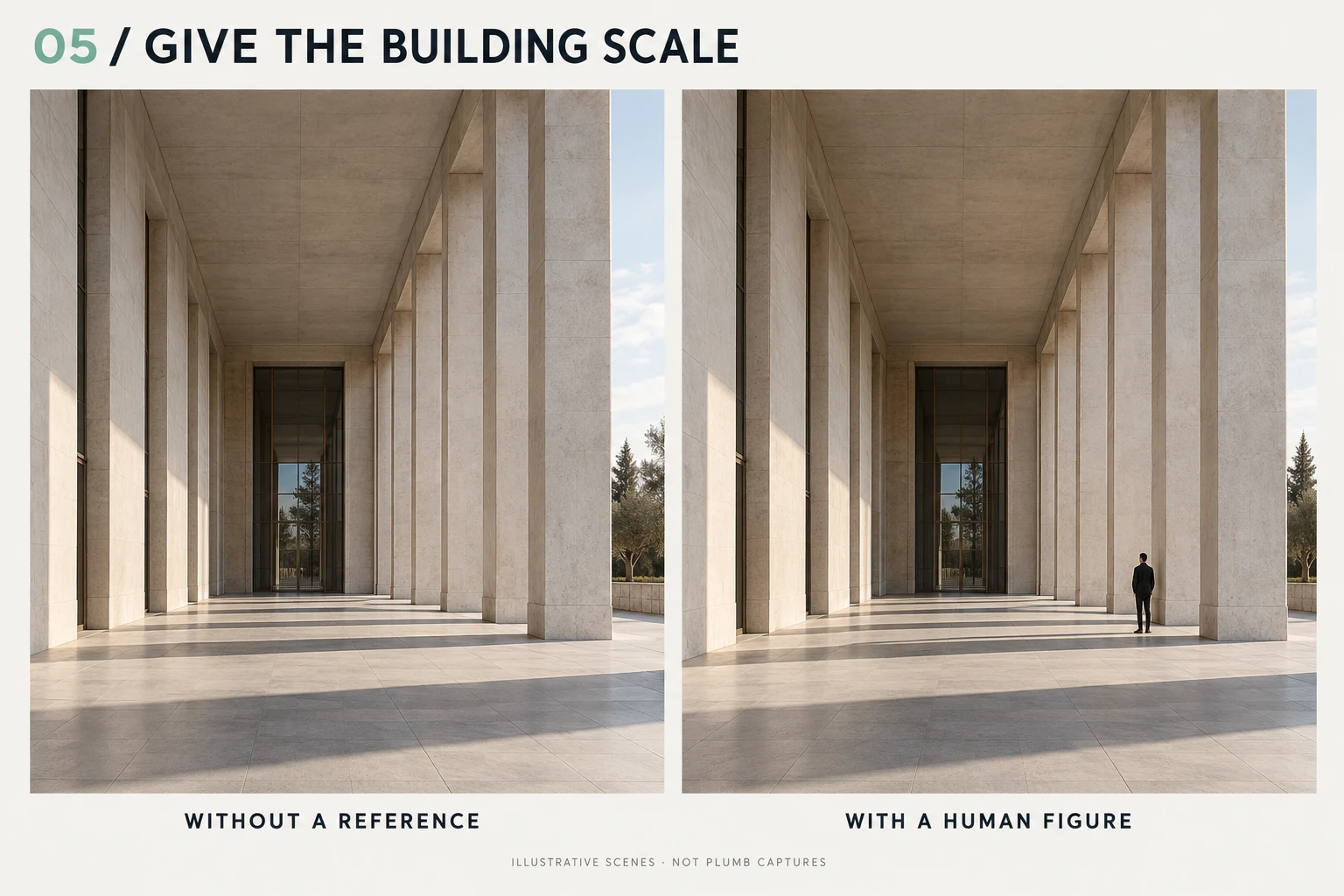
One person can help a viewer understand the size of a space. When photographing a tall entrance, a colonnade or a deep overhang, wait for someone to enter the frame. A figure provides a familiar reference and shows the architecture in use.6
Look for a clear silhouette against the background, and avoid obscuring an entrance or detail you want to show. Before taking the shot, scan the corners. A small change in position can keep a parked car, pole or bright sign from competing for attention.
06 Tell the story in three frames
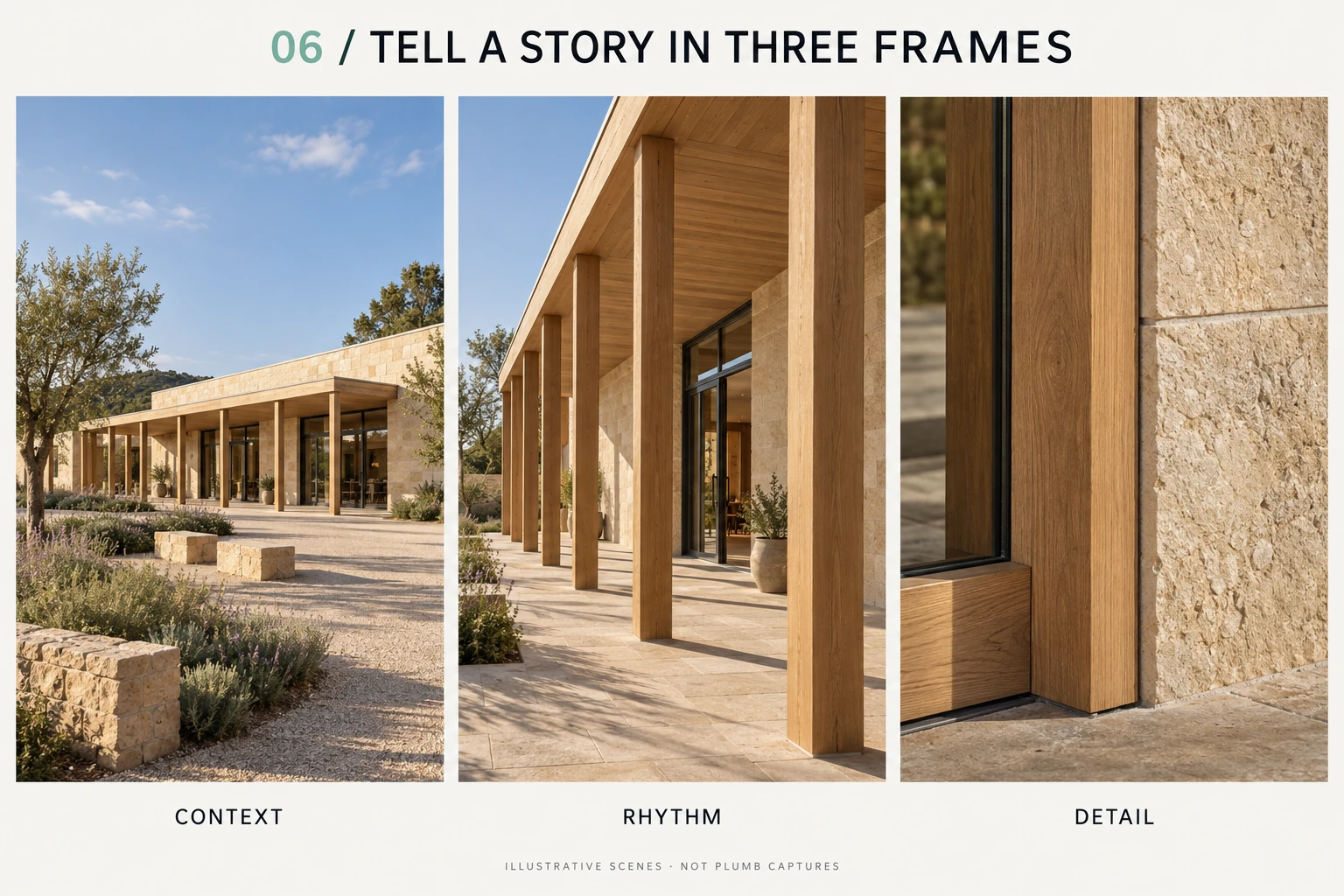
Try coming home with a context shot, a closer view and a detail. Show the building’s relationship to a street or square. Move in to an entrance, a grid of windows or a sequence of columns. Finish with a material texture or the junction between two materials. Repeated elements and patterns often deserve a photograph of their own.7
Review the set in Plumb’s Current Shoot and save it to an album before leaving. The sequence will help you remember what drew you through the building.3
Take another half-minute
Walk a few steps. Look at the light. Check the edges. Then take the photograph. Afterwards, ask yourself: did I capture what made this building worth stopping for?
Figures 01–03 are geometry-based teaching diagrams. Figures 04–06 are AI-generated illustrative scenes. None are Plumb captures or demonstrations of its actual correction output.
Further reading
- Canon — Architecture Photography Tips with Emma Desira
- Nikon — Choosing the right lenses: Perspective
- Plumb — Guide
- Adobe — Apply perspective correction
- Adobe — Architecture photography
- Canon — Human scale and architectural photography · Canon — Architectural photography kit
- Nikon — Improving your images of architecture
Architectural photography with iPhone
Explore practical guides to photographing tall buildings, correcting perspective and leaving room for the final crop.